

 German (DE)
 French (FR)
ZUGFeRD via PDF Printing
📢 Important notice: ZUGFeRD conversion only after testing, request and availability.
Please first test the processing with your own suitable PDF invoices.
Whether Word, Excel, Access, or existing billing software – for suitable, machine-readable invoice documents, a controlled PDF print workflow can be an option to prepare a review-required PDF/ZUGFeRD e-invoice.
In the background, our self-developed AI-assisted online service 7-PDF Invoice Extractor 🤖 supports the analysis of suitable invoice data.
The AI is part of 7-PDF Attach Extract and Remove and can be triggered by a console command from our PDF printer after PDF/A generation. From suitable, machine-readable PDF invoices, the service can detect relevant invoice data, prepare a review-required XML in the ZUGFeRD/Factur-X context, and embed it into the generated PDF/A-3 document. The few setup steps required are explained further down this page.
🎯 You print a suitable invoice – the tools 7-PDF Printer Professional and 7-PDF Attach Extract and Remove can prepare a controlled, review-required PDF/ZUGFeRD workflow. For robust processing, the layout and text flow must be machine-readable, and the invoice data must be complete, clearly recognizable and arithmetically plausible. Whether a specific document is suitable should always be tested in the trial with your own representative invoices.
💡 If you do not need a printing workflow and an existing PDF invoice is available, please do not reprint such files from a PDF viewer. With 7-PDF Attach Extract and Remove, suitable PDF invoices can be processed directly and prepared as review-required PDF/ZUGFeRD e-invoices. Alternatively, suitable PDF invoices can also be processed online using our portal at https://konverter.zugferd-rechnungen.de/en/.
ℹ️ Test first, then request access
The AI-assisted conversion does not replace invoicing, accounting or ERP software and is not intended for unlimited bulk conversion, unattended dark processing, SaaS/portal/managed-service use or arbitrary/scanned PDFs.
If parser errors occur during the trial, or if the generated ZUGFeRD data is not fully correct, you should not purchase a license or subscription and should use a native e-invoicing solution instead.
✔ Printing workflow: What is required?
- Download: 📥 7-PDF Printer Professional to generate PDF/A-3b format
- Download: 📥 7-PDF Attach Extract and Remove for AI-assisted generation and embedding of the ZUGFeRD XML
- Optional download: 📥 7-PDF E-Invoice Validator for additional technical and formal checking of the PDF/ZUGFeRD file
- Alternatively, suitable PDF invoices can be processed via our 🌐 online portal: https://konverter.zugferd-rechnungen.de
Please do not reprint existing PDF invoices from a PDF viewer into the print workflow shown here. This can destroy the text structure through rasterization or binarization and may degrade recognition. Instead, process such files directly with 7-PDF Attach Extract and Remove, provided they are suitable and machine-readable.
💡 IMPORTANT: For reliable detection of the document type, the term "Invoice" or a suitable document label such as "Final invoice" or "Credit note" should be clearly and visibly included in the document, ideally near the beginning. Unusual or ambiguous labels such as "fee statement", "cost note", or pure service descriptions can make automatic detection more difficult and should be tested carefully before productive use.
🚀 Step by step: Set up and test the print workflow
The following guide shows how a controlled print workflow can be set up and tested first with a sample invoice or with your own representative invoices. Before productive use, always run your own tests and check the generated results carefully.
- First, download the 📥 7-PDF Printer Professional Edition and install it on your computer. PDF/ZUGFeRD workflows require a PDF/A-3b document. This format can be generated by 7-PDF Printer starting with the Professional edition. You can find an installation guide here in this video.
- If not already done, please install 📥 7-PDF Attach Extract and Remove (version 2.0 or higher recommended). This tool is used to embed the ZUGFeRD XML. From version 2.0 onward, the AI-assisted analysis service is integrated into this software. The installer is available here.
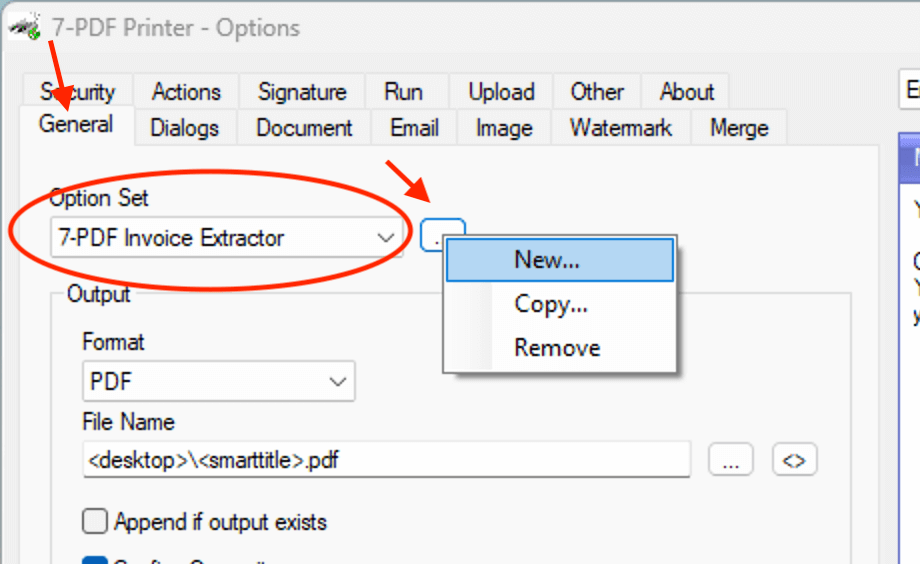
- Next, open the options dialog of 7-PDF Printer.
- Create a new OptionSet named "7-PDF Invoice Extractor". This is a custom name for saving your configuration.
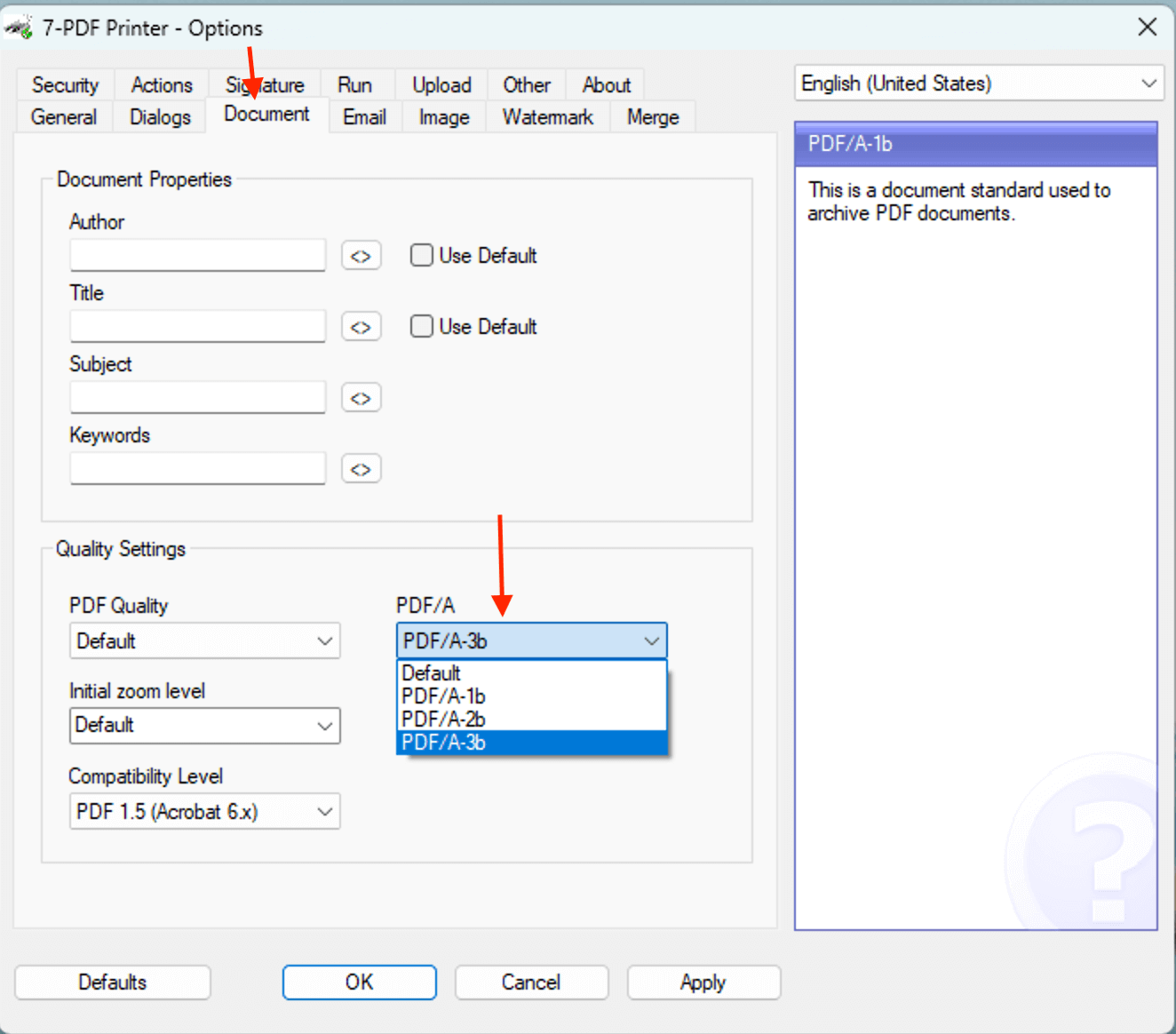
- Enable PDF/A-3b as the output format under the “Document” tab. This format is required for PDF/ZUGFeRD workflows because the XML file can be embedded in it.
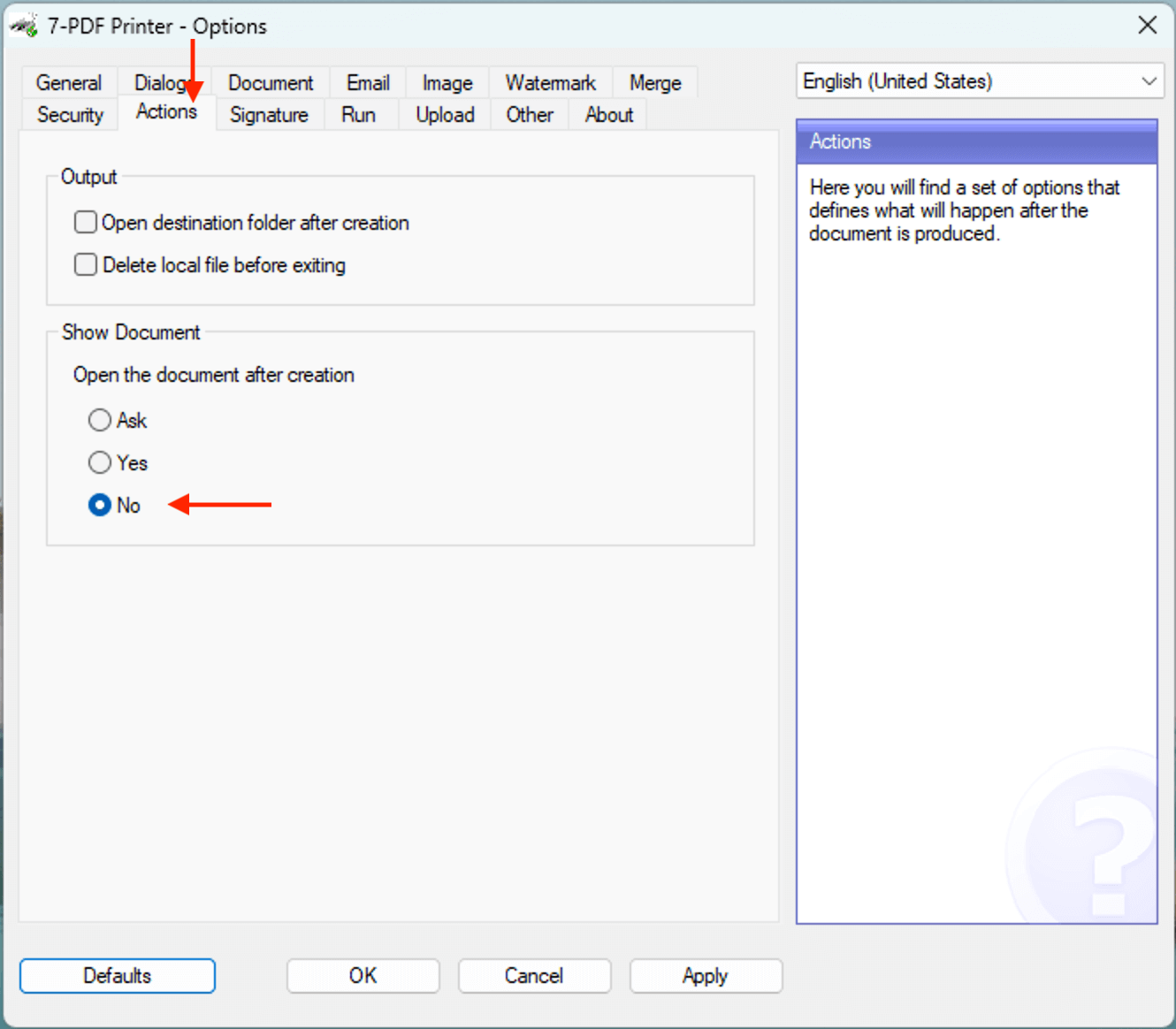
- Disable the automatic opening of the PDF after printing under the “Actions” tab. Otherwise, the viewer might block the PDF and prevent further processing by 7-PDF Attach Extract and Remove.
- Now integrate the call to 7-PDF Attach Extract and Remove via the command line to link PDF printing with AI-assisted XML generation.
- Don’t forget to save your settings by clicking "Apply" and "OK".
- Now start PDF printing, for example from Word, Excel, or an ERP system. The 7-PDF Printer dialog will appear.
- Finally, your default PDF viewer may open and display the generated PDF/ZUGFeRD file.
💡 Tip: Don't want the viewer to open? Use the-noviewerparameter.!"C:\Program Files (x86)\7-PDF\7-PDF Attach Extract And Remove Files\InvoiceExtractor.exe" "%1" "" -noviewer
✅ The result
In Acrobat Reader, you can see the PDF with the embedded
factur-x.xml. Please check the file visually, professionally, formally and technically before forwarding it.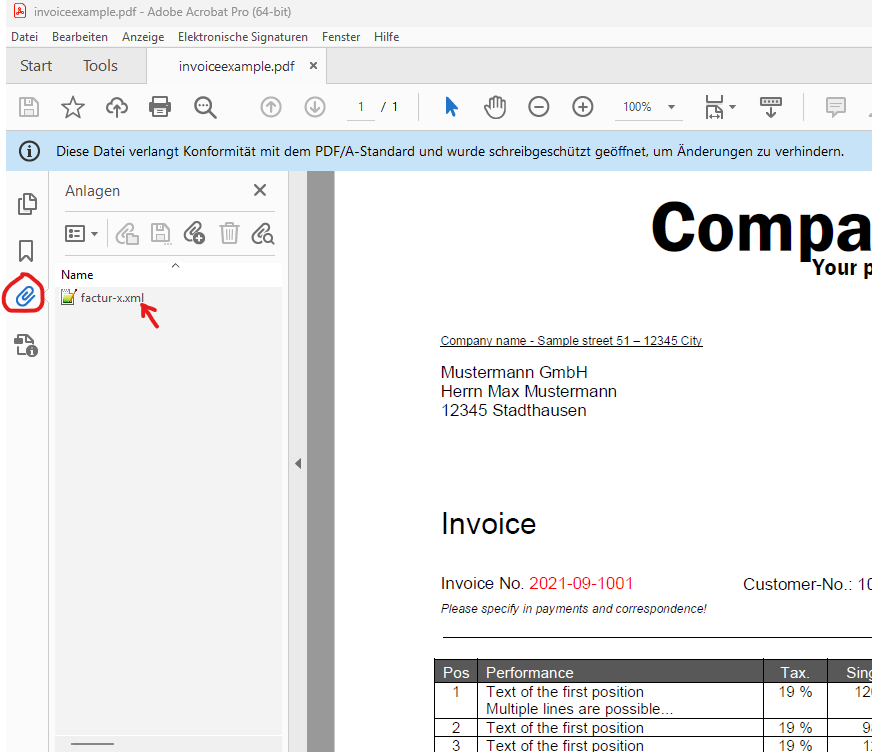
IMPORTANT: After installation, start "7-PDF Attach Extract and Remove" and switch to the "Privacy" tab. If you wish to use the 7-PDF Invoice Extractor service, you must consent to the transfer and processing of your invoice data. Without this consent, the AI-assisted processing step cannot be performed.
The screenshot shows the required area with the necessary activation:
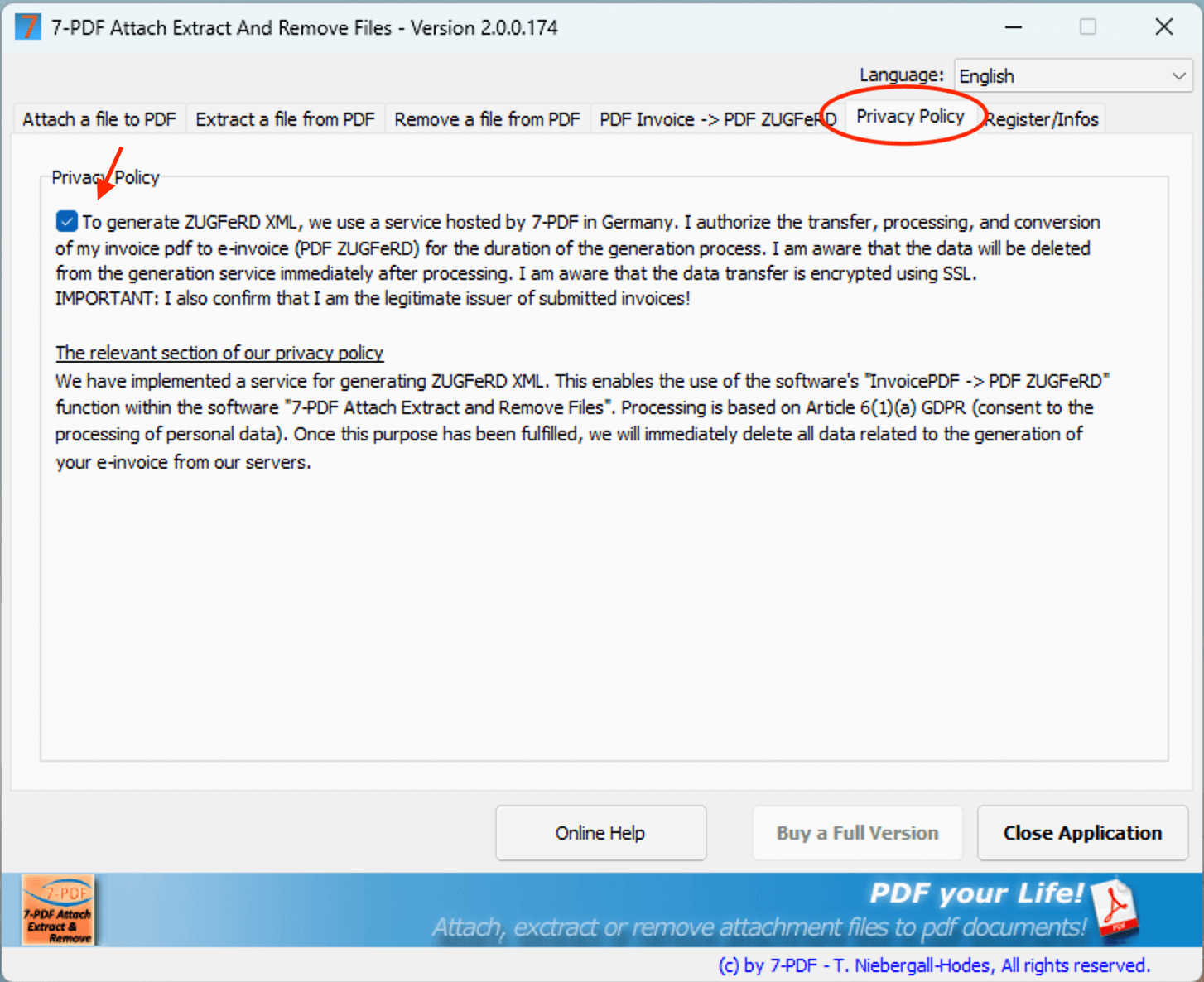
IMPORTANT: Don’t forget to close the program so your privacy settings are saved.
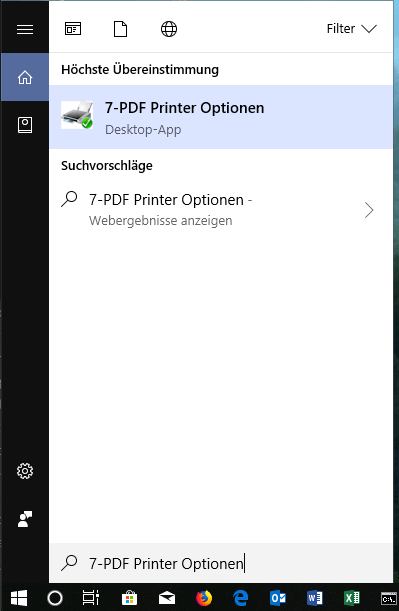
The easiest way is to use the Windows search function.
⚠️ Note on saving the new OptionSet correctly
Please create the OptionSet only for yourself as the current user. When saving, a dialog may ask whether you want to share the OptionSet with other users. Do not select the sharing option. Otherwise, the PDF printer may lose the required rights to attach the ZUGFeRD XML correctly to the PDF files.
Go to the "Execute" tab and enter the following command in the "Run on success" field:
!"C:\Program Files (x86)\7-PDF\7-PDF Attach Extract And Remove Files\InvoiceExtractor.exe" "%1" ""
The placeholder %1 stands for the file path of the generated PDF file. The empty pair of quotation marks "" can later be filled with an API token. For initial tests, it can remain empty if a trial quota is available. The command runs in the background.
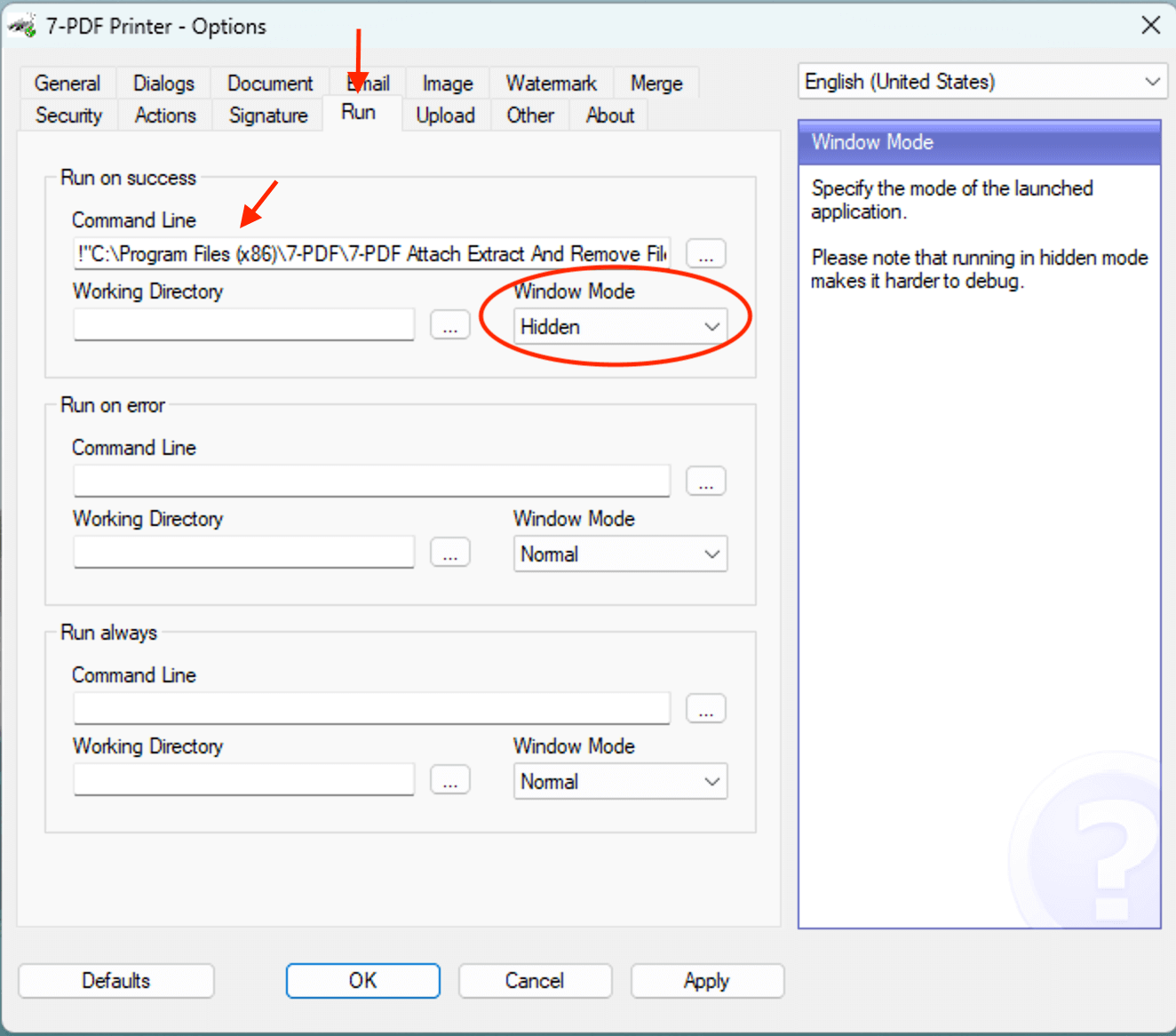
Note: The path must be correct. If the tool was not installed in the default folder, select the exe file via the "..." button. ⚠️ Attention: Don't forget to set window mode to "Hidden".
Tip: Use our 📥 Word demo invoice to test. Make sure that all relevant invoice data such as VAT ID or tax number, IBAN, line items, amounts and tax information are complete, machine-readable and plausible.
Select your previously created OptionSet, choose the save location, and click "Save".
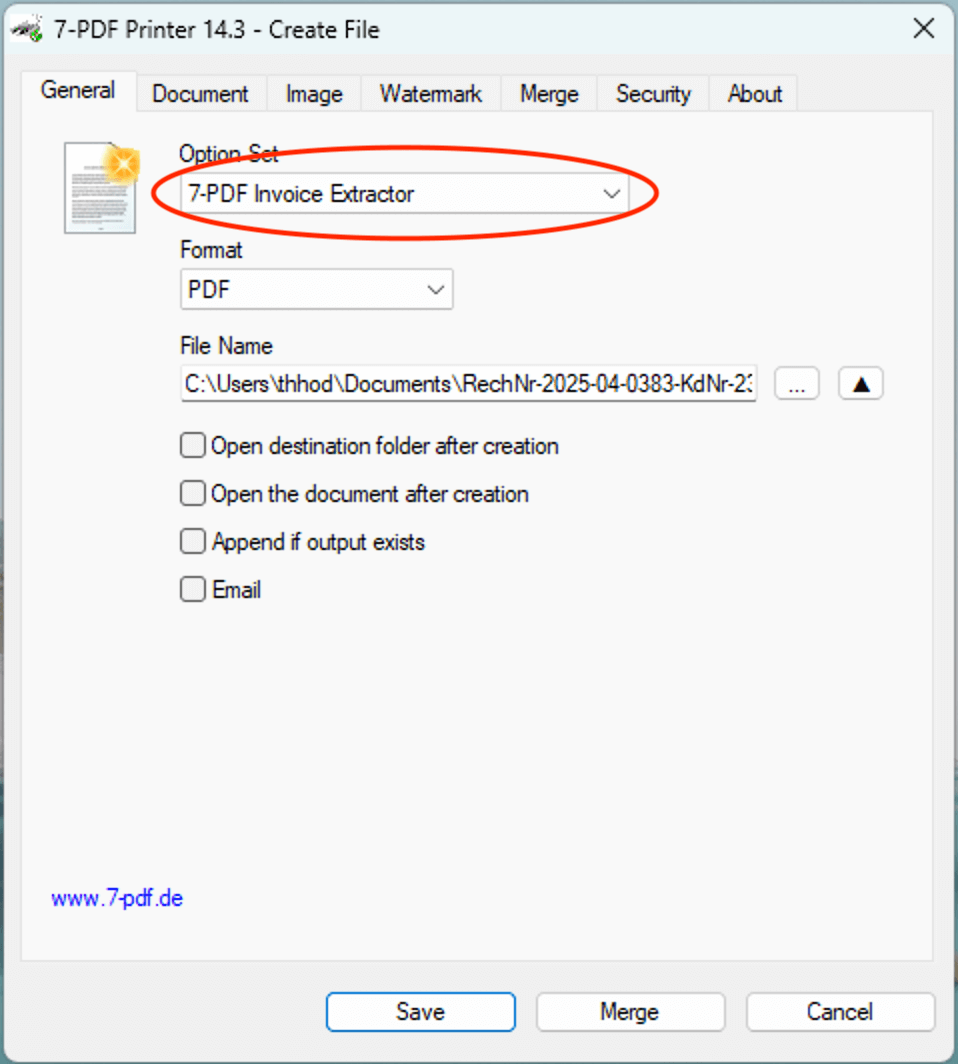
After processing, a message appears. If the source invoice was suitable, a review-required PDF/ZUGFeRD file with embedded XML has been prepared.
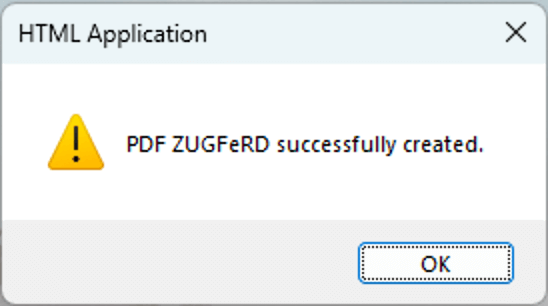
⏳ Note: Depending on the invoice's complexity and length, processing may take anywhere from a few seconds to several minutes. A confirmation message or an error message will appear afterwards. Please be patient.
⛔ Please do not send existing PDF invoices through a PDF viewer such as Acrobat Reader into the print workflow shown here. This can break the text structure through rasterization or binarization and degrade recognition. Instead, process such files directly with 7-PDF Attach Extract and Remove, provided they are suitable and machine-readable.
In case you do not receive a success message:
👉 Avoid processing incomplete or unsuitable documents. For initial anonymous and non-binding tests, you can use our free sample invoice.
💡 Only suitable, complete and machine-readable invoices can be processed meaningfully.
If no success message appears, the invoice is often missing required information or contains arithmetic or formal inconsistencies, such as missing line items, unclear invoice totals, missing IBAN, VAT ID, tax number or customer data. A used-up trial quota may also be the cause.
Tip: For more information on what to consider when creating a PDF invoice document for robust PDF/ZUGFeRD processing, please visit our
FAQ page for the 7-PDF Invoice Extractor.
In many cases, the cause is not the service itself but the provided invoice data or the technical structure of the PDF.
For further use, an API token is required. API tokens are provided only after testing, request, review and subject to availability. The token can then be integrated into ...InvoiceExtractor.exe" "%1" "XYZ...".
🔍 How do I validate the e-invoice result?
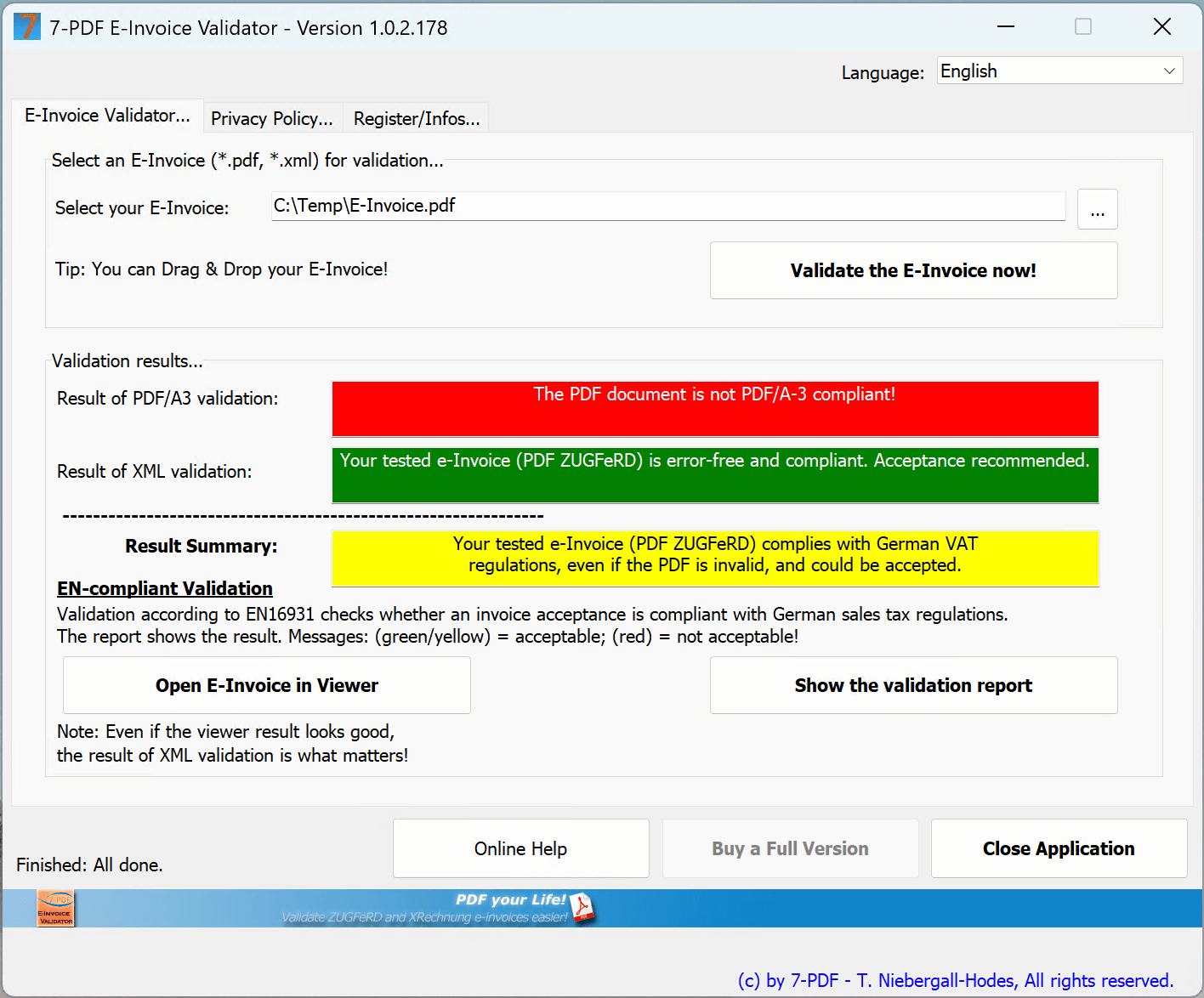
Every PDF/ZUGFeRD file created with the 7-PDF Invoice Extractor should be checked visually, professionally, content-wise, formally and technically before being shared with third parties. For this, you can use our 7-PDF E-Invoice Validator or another suitable validator. With this software, you can open a human-readable view of the e-invoice data and generate a validation report that checks technical and formal aspects of the e-invoice format.
📌 Quick start
Technical and formal checking of an e-invoice is straightforward:
- Open the 7-PDF E-Invoice Validator.
- Drag & drop an e-invoice (
.pdfor.xml) into the application window. - Alternatively, click the "…" button to choose a file.
- Click "Validate e-invoice now" to start the check.
Note: You may also use any other validator of your choice. The important thing is to check the generated e-invoice before forwarding it.
💡 Transparency & Quality: Our PDF Invoice → PDF ZUGFeRD service is intended for users with a manual, controlled invoicing process and complements existing tools — it does not replace an ERP system. Because AI extraction may vary in individual cases, a professional review of every e-invoice for content, structure and plausibility is best practice. Responsibility rests with the invoice issuer.
Automation: Technically possible, for example via FastAPI/CLI, but only with mandatory validation chains: XSD/EN 16931 checks and content plausibility checks against your data, such as totals, tax rates, buyer/seller IDs, routing ID/Leitweg-ID, IBAN/BIC, order or reference numbers. Without these controls, we advise against fully automatic dispatch. AI-assisted processing may vary in individual cases; checking and responsibility remain with the user.
🎯 Conclusion: Suitable, machine-readable PDF invoices can be prepared with the 7-PDF Invoice Extractor in a controlled workflow as review-required PDF/ZUGFeRD files. Please test first with representative invoices and check every result carefully.
💶 Prices and availability
- 🛒 7-PDF Attach Extract and Remove can be used as a desktop tool for manual and controlled work with PDF attachments and PDF/ZUGFeRD workflows.
- For the optional PDF/A-3 print workflow, 🛒 7-PDF Printer Professional may also be required.
- 💡 An API token is required for AI-assisted PDF-to-ZUGFeRD processing. API tokens are provided only after testing, request, review and subject to availability.
- ✅ Further information on licensing, prerequisites and bundles can be found in the linked product and FAQ areas.
🏁 Conclusion: Please test first with your own representative invoices. Further use of AI-assisted processing is possible only after request, review and availability of an API token.
💡 ZUGFeRD XML – Notes for robust checkability
Please ensure that your invoice data and price calculations are correct and traceable. Negative invoice amounts, unclear tax logic, missing required information or arithmetic deviations may result in no usable XML file being generated or in a later check failing. Your invoice templates, for example from Word or Excel, should include important information such as IBAN, BIC and your VAT ID or W-IdNr. in the format DE123456789 without spaces, if this information is required for your invoice type. In certain cases, a tax number may also be relevant. Please check the professional and tax-related requirements for your invoices on your own responsibility or with your tax advisor.
Note: Please ensure that tax-exempt invoices, for example in the context of intra-community trade in the EU, contain a clear note on the invoice, for example using terms such as tax-free or Reverse Charge. Whether and how such cases must be represented correctly depends on the specific invoice context and should be professionally checked.
Important: Avoid placing this information only as graphics in the header or footer of your template. Such information may not always be detected reliably, especially if the image quality of the submitted PDF is suboptimal. Please ensure that these values appear as machine-readable text within the invoice document itself.
✅ Check your outgoing e-invoices visually, professionally, formally and technically using our 7-PDF E-Invoice Validator, another suitable validator or your own controlled review process. Optionally, an additional check can also be integrated directly into the print process.
🚨 Note on Privacy & Security
- 🔒 Data is transmitted SSL-encrypted
- ❌ Invoice data is not stored permanently as part of processing
- 🇩🇪 Server-based processing takes place on servers located in Germany
- 🏢 As a German sole proprietorship, we personally stand for careful product maintenance, data-protection-oriented processing and support.
🎁 Trial: Test suitable invoices first
✅ With the trial version of 7-PDF Attach Extract and Remove, you can first check whether your own PDF invoices are suitable for AI-assisted processing.
🔄 Further use of AI-assisted PDF-to-ZUGFeRD processing requires an 💳 API token. API tokens are provided only after testing, request, review and subject to availability.
🖨️ Note: Create PDF/A-3 files with 7-PDF Printer Professional
To create a PDF/ZUGFeRD document, the source document must be available in PDF/A-3b format. For this, 7-PDF Printer Professional can be used to convert suitable invoices to PDF/A by printing.
💡 Further information on licensing, bundles and prerequisites can be found in the respective product and FAQ areas.

🛒 Note: Watch out for this symbol 👆 in the cart to see available cross-selling offers.
📘 Note on special tax cases
The 7-PDF Invoice Extractor can detect certain invoice notes such as Reverse Charge from suitable, machine-readable PDF invoices and include them in the generated data if the information is clearly and plausibly contained in the document.
Special tax cases, such as intra-community B2B invoices, national reverse-charge cases or small-business regulations, should be tested with your own examples before productive use and checked professionally or with tax advice. These notes do not replace tax advice.